How to use AI Image Generator
Describe the picture
Start with the subject and place, then the light and the type of photo: candid, product, portrait.
Choose a frame
Square for posts, portrait for stories and status, landscape for thumbnails and banners.
Save or animate it
Download as PNG or WebP, or tap “Animate this” to turn it into a short video.
Getting pictures that don’t look AI-made
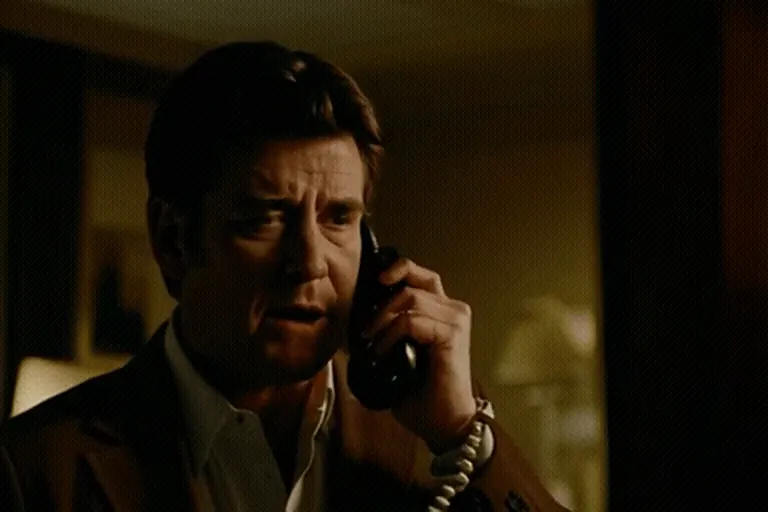
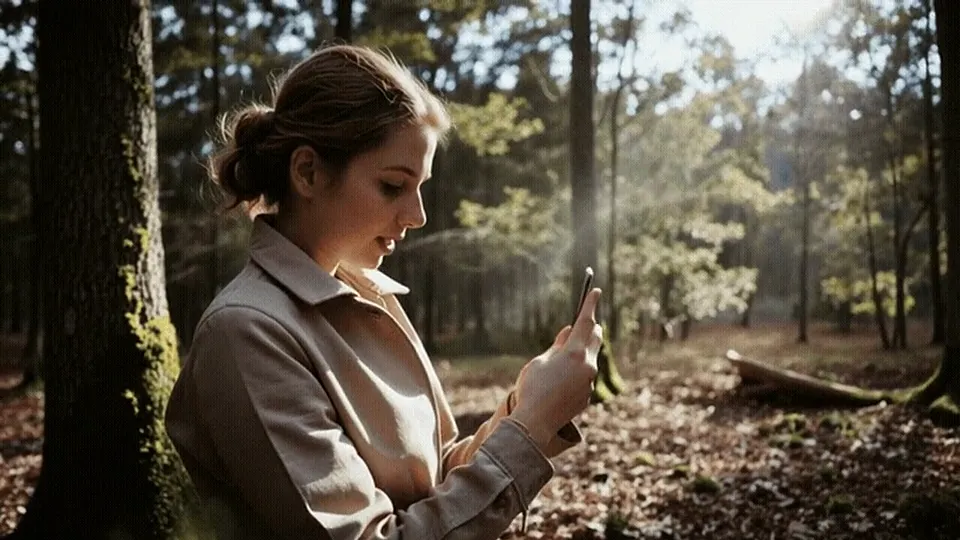
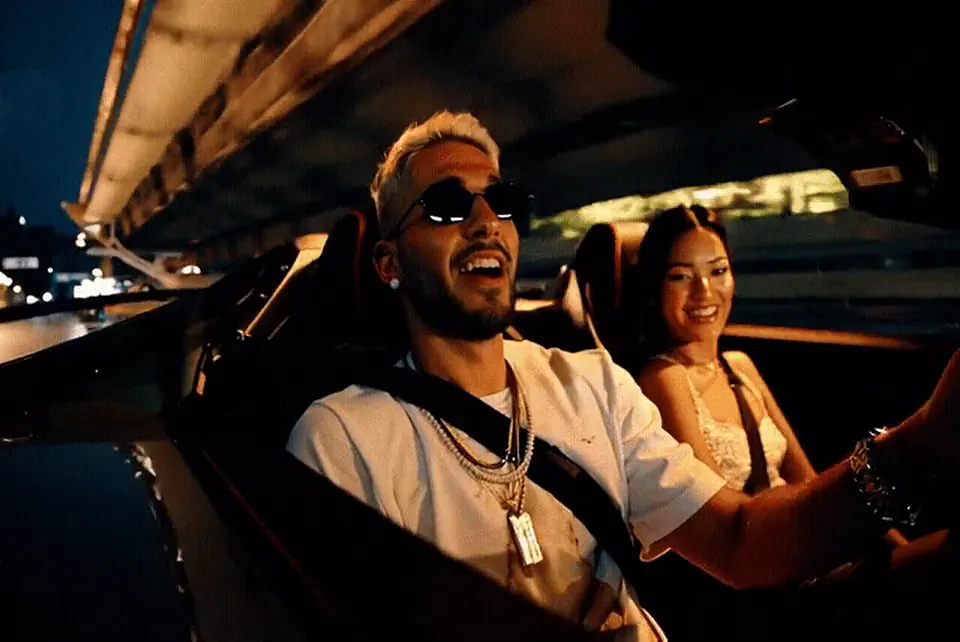
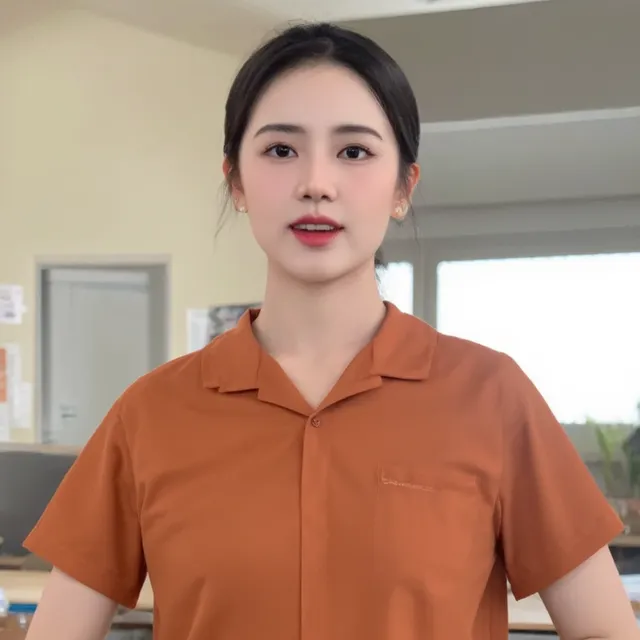
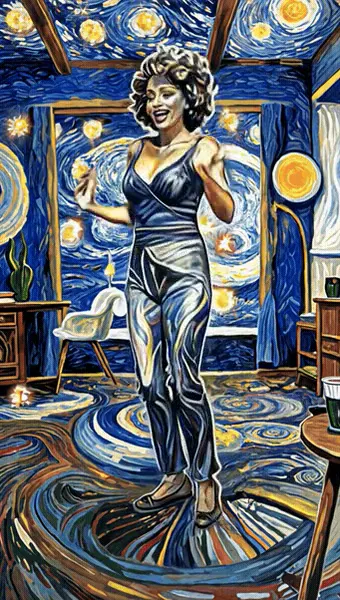
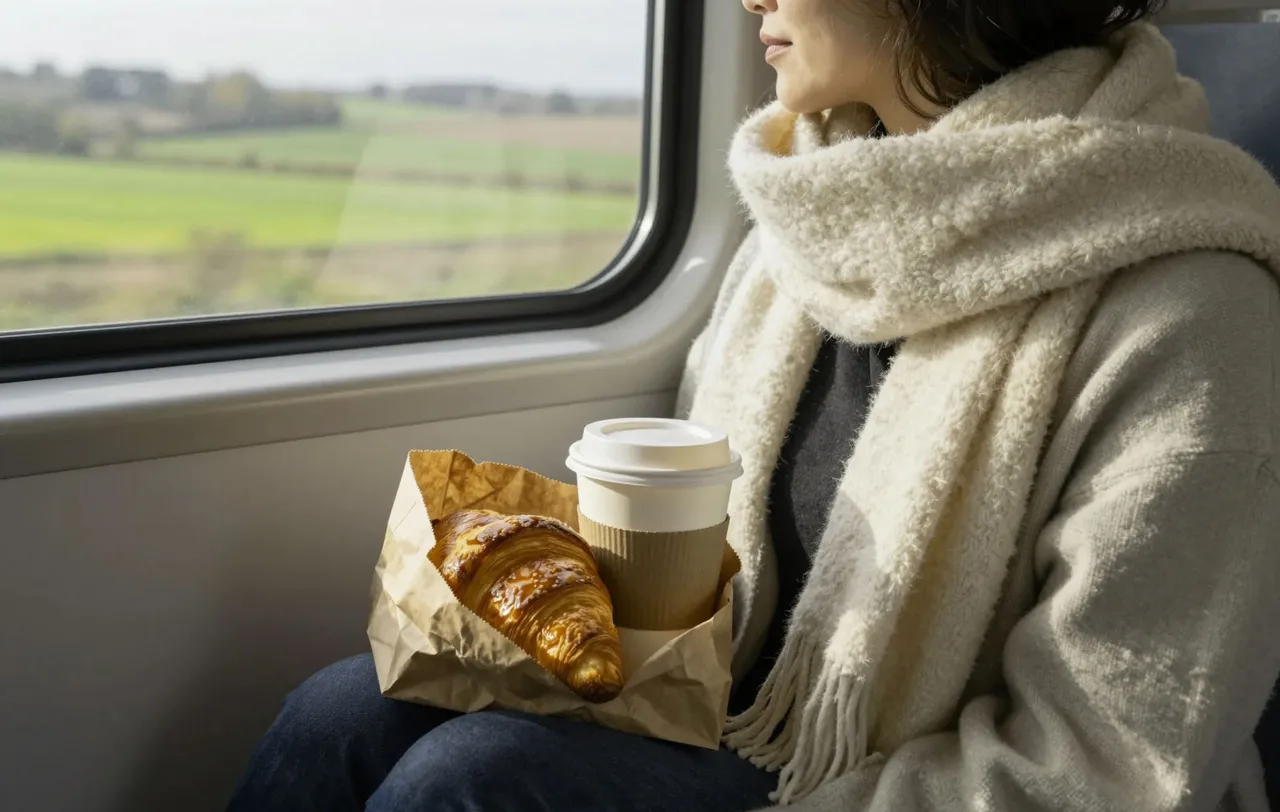
The plastic, over-polished look people associate with AI images usually comes from vague prompts. Real photos are full of small, ordinary details. Put a few of those in your prompt and the result starts to look like something a person actually photographed.
Four things to include
- Subject and place: “an old man feeding pigeons at a ghat”.
- Everyday details: a steel glass, a folded newspaper, a scooter in the background.
- Light and time: “early morning haze”, “tube light at night”, “overcast afternoon”.
- Type of photo: candid, documentary, product shot, smartphone photo.
Words like “candid”, “documentary” and “smartphone photo” pull the image away from the glossy look. Words like “ultra detailed, 8K, masterpiece” usually push it back.
Handy uses
- Small shops: lifestyle backgrounds for a product, such as a candle on a wooden shelf.
- Creators: YouTube thumbnails, blog headers and story backgrounds.
- Greetings: a rangoli scene or festive table for a festival post.
- Video starting frames: make the still here, then bring it to life with image to video.
Fixing a picture that’s nearly right
If the result is close but not quite there, change one thing at a time. Wrong mood? Change the light. Too busy? Remove a detail. Face looks too perfect? Add “candid” or “natural skin texture”. Generating a few versions of the same prompt is quick, and one of them is often the keeper.
Sizing and file weight
Each platform crops differently, so choose the frame that matches where the picture will go. Our social media image size guide lists the shapes that work. If a site or WhatsApp group needs a lighter file, the free image compressor shrinks it without obvious quality loss.
What it can’t do yet
- Long sentences of text in an image tend to come out misspelled. One or two short words in quotes, like a sign saying “OPEN”, work most of the time.
- Hands and fingers are better than they used to be, but still go wrong now and then.
- It can’t reproduce a specific real person, your exact product or a brand logo from a description.
- Crowded scenes with many people lose detail in the faces at the back.
Prompts to try
- A narrow old-city lane at golden hour, a vendor pushing a fruit cart, documentary photo
- Snow-covered pine trees around a wooden cabin at blue hour, warm light in the windows, wide shot
- A handmade soap bar on a slate tray with dried lavender, top-down product photo, soft daylight
- Mirror selfie in a small clothing boutique, printed kurti, phone flash, smartphone photo
AI Image Generator FAQ
How fast are images generated?
Usually between 5 and 15 seconds. You can make up to 25 images per hour for free.
Is there a watermark?
No. Images download clean, as PNG or WebP.
Can I use the images for my business?
Yes, within our terms. Don’t use them to imitate real people, brands or another artist’s recognisable work.
Why does the text in my image look wrong?
AI image generators still struggle with lettering. Keep any text to one or two short words in quotes, or add your text afterwards in a design app.
Can I turn an image into a video?
Yes. Tap “Animate this” under the result, or open Image to Video and upload the picture.
Do you keep my images?
Generated images are deleted from our server after 24 hours, so download the ones you want to keep.